
Leading a standup
Updated
A standup is the easiest meeting to run in Scrumpy. Open the tab, pick the running sprint, and talk through the cards in the order the team sees them. Everything you change stays in the standup until you press Apply, so you can rearrange the board while you talk without touching Jira.
Pick the planning session, board, and sprint
Open the Standup tab and pick a planning session from the tabs above the board. Pick the board first, then the sprint. The sprint list only shows the sprints that are running right now, so the standup opens on the work the team is doing today. The sprint name and goal sit above the columns, and the link icon opens the sprint in Jira. When the space has no board, pick a saved filter instead, and the standup shows the work items that filter returns, with one column per status.

Only a moderator changes the shared board. A voter or guest who picks another sprint does so only for their own browser tab.
Read the board
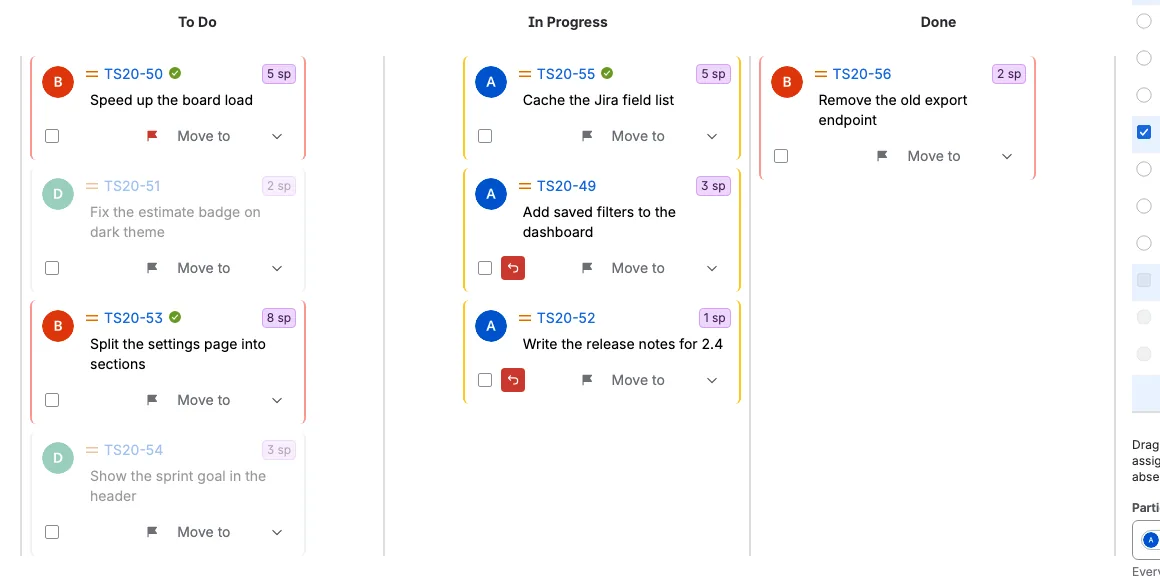
Every column of the board is a lane, in the board's own order. The cards follow the shared standup order, which starts as the order of the sprint in Jira. Each card shows the assignee, the priority, the key as a link, the estimate, and one or two lines of the summary. A card with an estimate shows it as a badge, so the team can see the size without opening Jira. A work item the team has passed shows a small green check right of its key.
In this example the To Do column holds the most work, one card has a red flag, and two cards were already moved while the team talked. The two moved cards carry an undo button next to their checkbox. Three cards carry the green passed check, and the two cards of the absent teammate are gray and dimmed.
Use Max per column in the toolbar to cap how many cards a column loads and shows. Work items beyond the cap stay in Jira and are loaded when you raise the cap. A work item the standup already loaded keeps its place and staged changes while it is hidden.
Flag a work item that needs attention
Select the flag at the right of a card to mark it for the team. A card that is already flagged in Jira opens with a red flag. Select it again to clear the flag. The flag shows for everyone right away, and it is written to the Jira Flagged field when you press Apply.
Move work items without leaving the standup
Use the Move to dropdown on a card to change its status or its place in the lane. By status offers the statuses the card can reach in Jira, and By rank moves the card one place up or down. Select several cards with their checkboxes to move them together. A card with a staged status move keeps By status disabled until you undo or apply that move, while By rank stays available. The statuses are read when you open the menu, so the first open can take a moment and shows Loading statuses until they arrive.
The change is shared with the team immediately, but it is not written to Jira yet. The moved card shows an undo button next to its checkbox. Select it to remove that staged change right away, without a confirmation and without changing Jira. Discard changes is the button that asks you to confirm before it clears everything.
Follow the same standup in the Status table
The Status tab at the left of the side panel shows the same standup in a second view. It is not another list: every work item of the sprint is there, in the same columns and the same order, with the same flags and the same staged moves. Move a work item in the table and its card moves on the board at the same time.
Each board column is a wide row with its name in the middle, and the work items of that column sit under it. A row shows the work type, the priority, the flag, the key, the green passed check, the undo button, and the estimate, so the whole sprint fits in a short list. That makes the table quick to scan, and sometimes it is simply easier to walk through the work items here than on the board.
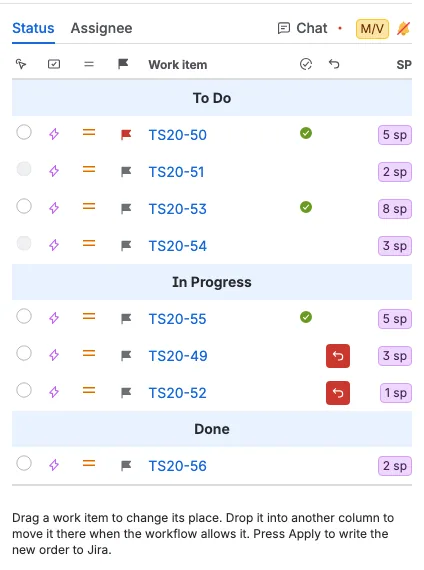
- Select the round button at the left of a row to make that work item the one under discussion, exactly like clicking its card. Everyone else sees a yellow M on that row.
- Drag a row to change its place in its column, or drop it under another column to move it there when the workflow allows it.
- Select the flag to stage a flag, and the undo button to remove a staged change. These are the same buttons and the same staged moves as on the board.
- A green check in the narrow column after the key means the team has passed that work item: the moderator forwarded its countdown, or moved the selection on after the countdown ran out. The same check appears next to the key on the card and in the Assignee table.
- A moderator can move and flag every work item, a voter only the work items assigned to them, and a guest reads the table.
Apply writes the new order and the staged moves to Jira from here too.
See who is in the room
The Assignee tab follows Status at the left of the side panel. It groups the same work items by the person doing them, so the standup can walk through the team person by person instead of column by column. Unassigned sits last and holds the work items that have no assignee.
Every assignee is a wide row with the person's name in the middle, and that person's work items sit under it, in the same board order. A row shows the same facts as the Status table: the work type, the priority, the flag, the key, the green passed check, the undo button, and the estimate. The check and the undo button are the same ones you see on the board and in the Status table.
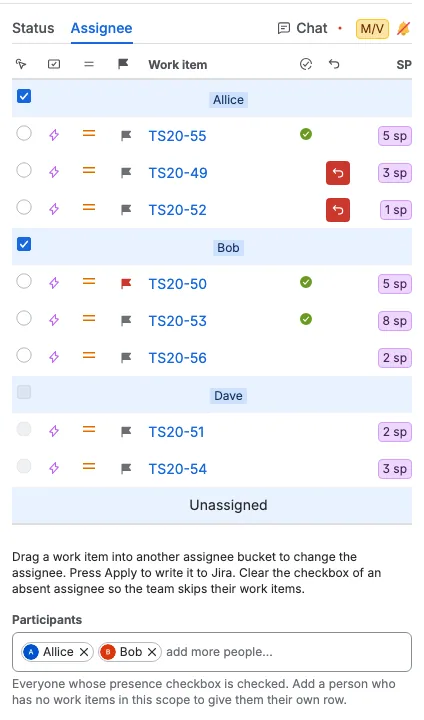
- Drag a work item into another person's row to give it to them. The board avatar, the card color, and the Status row show the new person right away, but Jira changes only when you press Apply.
- The Max per column cap also applies here, so the table lists only the work items the board shows. A person whose work items all sit beyond the cap is not listed, in the table or in the Participants picker, until you raise the cap.
- A moderator can give any work item to another person. A voter can give only their own work items. Guests read the table.
- The Participants picker below the table lists everyone whose checkbox is checked. A moderator clears the checkbox at the left of an assignee row to remove that person from the picker and mark them absent. The row stays, with the checkbox unchecked and disabled, because the work items still belong to that person. Add the person back in the picker to check it again. Clearing a person who has no work items removes their row. The choice is shared with the team right away.
- When a person is absent, their work items cannot be selected, from this table, from the Status table, or by clicking the card. Their cards use a gray border with dimmed text and avatar, so the team can tell them apart, and they lose the countdown pause, resume, and forward buttons.
- With the Assignee tab open, the countdown forward button walks this table and skips every absent person, so the standup continues with the next teammate.
- Unassigned is always present and has no checkbox.
Apply the changes to Jira
This is the step that makes the changes real. Press Apply in the action bar under the board. Scrumpy writes the new status of every moved work item, the new order of the sprint, the staged flags, and the new assignees to Jira, in one go.
A moderator can also archive the standup with Archive, which sits before Apply and appears when a Confluence space is configured for archives. The dialog lists the planning window, the sprint, board, or filter, every assignee with presence and presentation time, and every work item with its status, presentation time, and changes. A staged change is marked Pending. Archiving never changes Jira or the staged changes.
Without Apply, nothing is saved to Jira. Closing the tab or picking another sprint leaves Jira exactly as it was. If you change your mind, press Discard changes and confirm the dialog instead. Discard removes every staged change and clears every passed check, and it does not touch Jira. Apply clears the passed checks too, because the walkthrough is over. Reload sprints and work items reads the sprint from Jira again.

Keep everyone in step
The moderator clicks the card the team is talking about, and everyone locked to the moderator follows the same card. The countdown at the right of the action bar follows that card, so each work item gets the same amount of time. When the Assignee tab is open, the forward button moves through the people in that table and skips every absent teammate; on any other tab it follows the board. Select Complete after Apply when the session is done, and the planning session and its standup are removed.