
Planning Sessions
Updated
Planning sessions group related work items for organized estimation. They help you prepare for sprint planning by collecting work items and tracking estimation progress across perspectives.
Planning sessions live on the Space Estimations page. If a space administrator hides that page in space settings, the Add to planning action on work items is hidden with it.
Creating a Planning Session
From the Refinement/grooming tab on the Space Estimations page:
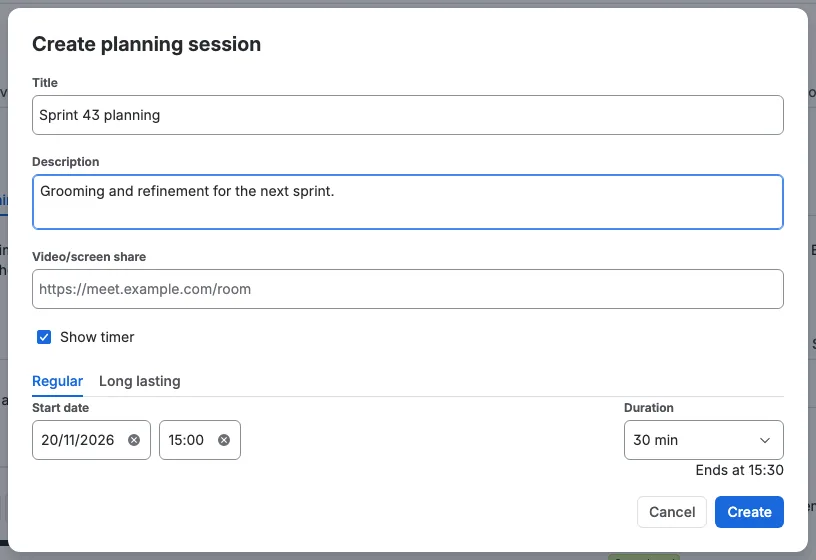
- Click Create.
- Enter a title, such as "Sprint 42". Each title must be unique per space. A title is required: if the field is empty or contains only spaces, it is marked in error and a message tells you that the name of the planning session is required.
- Optionally add a description and a schedule. The Show timer checkbox is checked by default. Clear it to hide the schedule and create the planning session without a timer. While it is checked, choose the Regular tab to set a start date and time on the left and a duration of 15, 30, 45, 60, 90, or 120 minutes on the right, all on one line, with the end time shown below the duration. The dialog shows when the session ends, and the end moves to the next day when the duration crosses midnight. Choose the Long lasting tab to set a start and an end date and time yourself; the start sits on the left and the end on the right of one line. You can pick a date and type any time; the time list suggests every 15 minutes, and a typed time is always kept. Past dates and times are allowed. The dialog opens with the next half hour and 30 minutes already filled in. Clearing a start date puts today back, clearing an end date puts the day after the start back, and clearing a time puts the next half hour back, so the fields never stay empty. The end must be later than the start. Create also stays disabled while the title is empty or contains only spaces.
- Optionally add a Video/screen share link, such as
https://meet.example.com/sprint-42. The link must be a full address that starts withhttp://orhttps://. While the field holds a valid link, a video icon appears inside the field; click it to open the link in a new tab. An incomplete address such asmeet.example.com/sprint-42is marked in error and Create stays disabled until you fix it or clear the field. - Click Create. The dialog closes right away and the new planning session appears in the list immediately. If it cannot be saved, it is removed again. Only moderators can create planning sessions. With no sessions yet, moderators see a prompt to create the first one, while non-moderators see an informational message that explains how a space administrator can assign roles from the space settings Permissions tab. Each planning session appears as its own tab, and a newly created session is focused automatically. While a planning session is open, its Edit and Delete actions sit in the row above the tabs, just before Create. They are not shown while there is no planning session to act on. The planning session tab you last opened is remembered for the current browser tab, so a reload returns you to it. If that planning session no longer exists, the first planning session opens instead.
The same planning sessions also appear as tabs on the Capacity planning, Standup, and Retrospective tabs. The planning session you select is shared between those tabs, so switching tab keeps the same session open. See the Sprint standups and Sprint retrospectives guides.
Planning sessions are kept for three months (90 days) after their last change and are removed automatically after that.
Editing and Deleting
Click Edit on a planning session to change its title, description, video link, or date range. Changes appear for everyone viewing the Space Estimations page without a refresh. The dialog closes as soon as you confirm, and the change shows in the list right away. If the change cannot be saved, the previous values come back and a message tells you that the planning session could not be saved.
The title is required: if you clear it, the field is marked in error, a message tells you that the name of the planning session is required, and Apply does not save the change. The schedule has the same two tabs as the create dialog: Regular takes a start and a duration, and Long lasting takes a start and an end. A session saved with one of the offered durations opens on the Regular tab with that duration selected; any other length opens on the Long lasting tab. The Show timer checkbox controls the schedule: clear it to remove the timer, and a session without a timer opens with it cleared. While it is checked, clearing a start date puts today back, clearing an end date puts the day after the start back, and clearing a time puts the next half hour back, so the fields never stay empty. The end must be later than the start. The time list suggests every 15 minutes, and you can type any time.
The Video/screen share link is optional and has the same rules as on the create dialog: it must be a full http:// or https:// address, and a value that is not one is marked in error and keeps Apply disabled. Clear the field to remove the link. When a planning session has a link, every participant header shows a small red video icon just before the role badge: on the planning session side panel, in Capacity planning, in alternative voting, and in the work item voting panel. Click the icon to join the video or screen-sharing session in a new tab. The icon appears as soon as the link is saved, without a reload, and disappears when the link is cleared.
A moderator can also change the description in place. In the Refinement/grooming tab, click the description above the planning table, type the new text, and click away. There is no OK or Cancel button: the text saves when the field loses focus, appears for everyone right away, and returns to the saved text if the save fails. A session with no description shows a placeholder you can click to add one.
To remove a planning session, use Delete in the row above the tabs, beside Create. It removes the planning session and all of its items permanently after a confirmation. It also removes its planning-session chat, the work item chat messages and reactions for its items, its ranking records, capacity planning data, standup data, retrospective data, and any linked voting sessions. See Deleting a Planning Session.
Adding Work Items
You can add work items to a planning session in two ways.
From the Work Item View
Open a Jira work item, open the Scrumpy panel, and click Add to planning. You can also open the same dialog from the work item's more actions (...) menu by choosing Add to planning. Adding a work item to a planning session is a moderator action: voters, guests, and anyone else see a note that only moderators can add work items, instead of the picker. The dialog preselects the planning session you used last on this space; when the space has no planning sessions, Create is selected instead. Choose another existing session, or choose Create to create one inline with a title and description; a title is required before the item can be added. A work item can belong to only one planning session in a space. If it is already in the selected session, you are told that it is already there. If it is in another session, you are told which one and it is not added; remove it from that session first. The dialog closes after the item is added. Each planning session you open loads its work items. Switching to another session loads that session once, and returning to one you already opened shows its work items right away.
Add from Jira Filter
Click Add from filter to import work items from a saved Jira filter, a sprint, a capacity planning session, or a retrospective. The picker starts with a Capacity planning group that lists the planning sessions whose capacity plan has at least one planned work item. Select one to preview every planned work item across that capacity session's sprints. A Retrospective group follows it and lists the planning sessions whose retrospective action items are linked to Jira work items. Select one to preview the linked work items. The Retrospective group is hidden when no action item is linked to a work item. If the space has a Scrum board, the picker then shows an Active sprints group that lists the active and future sprints, and a Backlog group with one entry per Scrum board. The Active sprints group appears only when the space has at least one active or future sprint. The Backlog group appears whenever the space has a Scrum board, even when no sprint is active or planned; Kanban spaces show neither group. Select a sprint to preview its work items, or select a Scrum board under Backlog to preview that board's work items that are not in any sprint. Only work items from this space are listed.
Below the backlog, the picker lists the space's Kanban boards under Boards; pick one to preview the work items on that board. Scrum boards are not listed there, because the sprint and backlog entries already cover them. Then come favourited filters under Favorite, your own filters under My filters, and shared filters under their owner's name; favourited filters show a star. Type in the picker to search Jira by any part of a filter name. The same text also narrows the sprint, backlog, and board lists and every filter group. Scrumpy asks Jira for the first 100 shared filters that match. When more shared filters match than that, the dialog says it shows the first ones, and typing more of the name narrows the list. To start over, clear the picker: the chosen filter is dropped, the search box empties, and the first 100 shared filters return. Select a filter to preview its work items, tick the ones you want, and add them. A work item that already belongs to a planning session is marked with that session's title and cannot be added again, even when that session is not open in another tab. You can create filters on the Jira filters page. A planning session can only hold work items from its own space, so any work item from another space cannot be added; the preview lists only this space's work items and says so below the table. You can also add only work items you can open in Jira: a work item hidden from you stays out of the session, even if you know its key.
Only work items you can open in Jira can be added. If a work item is hidden from you by Jira issue-level security, Scrumpy rejects the add, and that work item is omitted from the planning table for you.
In the preview you can:
- Tick individual work items, or use the header checkbox to select all selectable ones on the page you are looking at.
- Page through long results below the table. The preview shows 100 work items per page, and your ticks stay when you change page.
- Reorder rows by dragging them. The ticked items are added in the order the preview shows, across every page.
- See Type, Work item, Status, and Summary columns. The Type column shows the icon of the work item's type, including newer and custom types. The Type and Work item column headers and all their cells are center aligned. A warning-colored status icon in the Status column marks work items that cannot be added. Hover the icon to see why: it is not from this space, it is already in this planning session, or it is already in another planning session in the space, and the tooltip names that session.
The preview loads at most 500 work items. When a filter matches more, the dialog says it shows the first 500.
Add stays disabled until you select at least one work item.
Managing Items
- Drag and drop: Reorder items by dragging rows (moderators only). Everyone sees the new order right away, without a reload, and the perspective rows stay below the work items.
- Select: Tick the checkboxes to select items for bulk actions.
- Highlight: Use the radio button to select a work item for estimation. It loads into the Voting Panel on the right, so you can estimate directly from the planning table. When no work item is selected, the right panel shows a planning session side panel with a Details tab for the no-selection message and a Chat tab for the planning session chat.
The Type and Work item columns in the planning table are center aligned. The affinity and dot ranking columns, when they appear, are center aligned as well.
Edit mode
The Edit mode dropdown to the right of the session description chooses how voting is driven: Single voting (the default) or Bulk voting. A moderator changes the shared mode, and it appears for everyone right away, so every participant follows the same mode. A voter can also change the mode. That change applies only to that voter, unchecks Lock to moderator, and is remembered for the current browser tab. Checking the lock again returns the dropdown to the moderator's current mode. The moderator's mode is saved with the planning session. A voter's local mode is not shared and does not change what the moderator sees.
To the right of the Edit mode dropdown, the app switcher button opens Capacity planning on the same planning session tab. Its tooltip says Switch to capacity planning.
Visible perspectives
The perspectives dropdown sits just before the Edit mode dropdown. It chooses which perspectives the planning table shows, as a column and as a row in bulk voting, and which perspective tabs appear in the voting panel on the right. It appears only when the space has more than one perspective. When the dropdown is empty it shows All perspectives, which is also the default for every planning session.
A moderator changes the list for everyone, and it updates without a reload. A voter can narrow the list for themselves. That change unchecks Lock to moderator and stays in the current browser tab. Checking the lock again returns the moderator's list. A guest always follows the moderator's list.
Only the perspectives in the list are offered for the bulk Start, Pause, Resume, Complete, Restart, Cancel, and Accept actions. If the moderator hides the perspective that is currently open in the right panel, the panel returns to the highlighted work item. A perspective you add later appears automatically until someone narrows the list.
Who is highlighted
Moderators pick the highlighted work item for everyone, and the selected row shows a yellow M with the tooltip "Work item currently selected by the moderator".
In bulk mode a moderator can instead select a perspective row, which opens alternative voting for it. That selection is also shared, and it replaces any selected work item. Other participants see the same yellow M in the first column of that perspective row, with the tooltip "Perspective currently selected by the moderator".
The selected perspective is also the perspective tab of the inline voting panel, so highlighting a work item opens that tab. Participants who are locked to the moderator follow the moderator's tab, and a yellow M badge marks it, even when it matches the tab they are on. The badge stays visible when you clear the lock, so you can always see where the moderator is. It is shown only while the moderator's selected work item is the one being shown; it is hidden when an unlocked participant focuses a different work item.
The M is also your pointer to the moderator's view. While you follow the moderator, your highlighted row and the M row are the same. When you pick a row yourself, your highlight moves to that row and the M stays on the moderator's row, so you can see how far you have drifted. The same holds for the inline panel: the M stays on the moderator's tab after you open another one. Following the moderator also means that the moderator switches tabs for you: while Lock to moderator is on, every work item and tab the moderator opens opens for you too. Detaching is one click: pick another row, tab, or edit mode, or clear Lock to moderator yourself.
By default, other participants follow the moderator's work item selection, edit mode, and alternative-voting tab. A Lock to moderator checkbox (on by default) controls this. It applies to the planning tab you are on: Refinement/grooming, Capacity planning, Standup, and Retrospective. It also controls the space page tab: when the moderator switches between those tabs, a locked participant viewing the same planning session moves to the same tab and stays locked. When you switch between those tabs yourself, the checkbox clears, so you start detached on the new tab. Switching to Getting started, Tutorials, or Dashboard and back does not clear it.
If you pick a row, switch the edit mode, or open another alternative-voting tab yourself, the lock turns off. The lock is remembered in this browser tab while you stay on the tab. Your local choices stay with the tab where you made them. Clearing the lock keeps the right panel on the tab you were following; it does not jump back to a tab you opened earlier. Your local choices survive a reload but are not shared with anyone else and do not change what the moderator sees.
Turn the lock back on to follow the moderator again; the edit mode dropdown and the alternative-voting tab then return to the moderator's current choices.
Bulk actions
Below the table, a Perspective select (disabled until you tick at least one work item) chooses which perspective the session actions apply to, followed by icon-only actions. The open list starts with a Perspective heading that you cannot choose. Each action has a tooltip stating that it applies to the selected work items. The chosen perspective and the ticked work items are remembered for the current browser tab, so a reload restores them.
| Action | What it does |
|---|---|
| Start | Opens voting sessions for the ticked items in the chosen perspective |
| Pause | Pauses their started sessions. Sessions that are already paused are skipped, and perspectives with asynchronous voting are skipped because their sessions cannot be paused |
| Resume | Resumes their paused sessions. Perspectives with asynchronous voting are skipped because their sessions cannot be resumed |
| Complete | Completes their started sessions. A session with no votes (no real estimate) is cancelled instead, matching the voting panel's Complete button. Votes made only with the extra emoji cards count as no votes |
| Restart | Restarts their completed sessions in place. The new round starts right away with the configured required voters, and the completed result and its votes are discarded. The work item keeps its place in the perspective's rankings |
| Cancel | Cancels their voting sessions, including completed ones |
| Accept | Accepts their completed sessions and writes the estimates to Jira. The estimate appears in the perspective column right away. If the Jira write fails, the session and the column return to their previous state and an error dialog explains why |
| Remove | Removes the ticked items from the planning session |
An action is disabled when no ticked work item applies: Start when every session has already started, Pause when there is no active session or the perspective uses asynchronous voting, Resume when there is no paused session or the perspective uses asynchronous voting, Complete when there is no started session, Restart when there is no completed session, Cancel when no ticked item has a session, Accept when there is no completed session, and Remove until something is ticked. Removing the highlighted item clears the highlight.
Each action takes effect in the table immediately. The rows are added, paused, resumed, completed, restarted, or removed right away, and the buttons enable or disable from those updated rows, so the same action cannot run twice. There is no spinner. The inline voting panel on the right changes in the same moment, and a vote or session action made in the panel updates the table row at the same moment too. You never need to wait for a refresh to see the other side catch up. If the change cannot be saved, both the table and the panel return to the previous state.
After a drag or a bulk removal, the table updates right away. The change is confirmed in the background, and if the write fails the previous order returns.
Bulk Voting
Anyone can switch the Edit mode from Single voting to Bulk voting. A moderator changes the shared mode, and a voter switches locally. In bulk mode, the planning table keeps all of its rows and buttons, and its perspective cells become voting controls, so the description, the Edit mode dropdown, the buttons, the progress bar, and the estimation panel all stay in place.
A perspective cell shows a voting control only when that work item has a started session in that perspective:
- A clearable dropdown of the deck's cards (for example "2 sp" or "XXL"), with the extra cards grouped under an Extra cards heading, preselected with your current vote.
- A number field bounded by the perspective's minimum and maximum for free scale perspectives. The field always shows an "sp" suffix after the number. When the perspective converts story points to a duration, it also shows a short duration such as "1d 4h" beside the suffix. Clearing the field removes the vote, restores the work item's original estimate as the field value, and marks the field as needing a vote. The clear control is always visible and is disabled until the field has a value.
- A parametric result in a read-only numeric field with an "sp" suffix, a compact withdraw control, and one compact edit vote control inside the suffix area. When you have not voted yet, the field shows the work item's current estimate when it is numeric and is marked as needing a vote. Opening the edit control calculates the current result and shows it in the field straight away, using the perspective formula and the parameter values in the popup. The popup has one compact number field per parameter, labelled with the parameter name and bounded by its minimum and maximum, and a centered primary Vote button below the parameters. Changing a parameter updates the value in the field immediately. The edit control is hidden while the popup is open and comes back when it closes. Vote closes the popup and casts the result. Clicking outside the popup closes it without saving and restores the previous vote, or returns to the empty error field when there was no vote. When a vote already exists and you have not changed a parameter, Vote stays disabled. Press the withdraw control to remove the current parametric vote immediately. The field shows the work item's original estimate again and is marked as needing a vote, and the withdraw control and the "sp" suffix stay visible while the withdraw control is disabled. The converted duration and the wider field appear only when the estimation target writes a time value: a time board or a Time field. The numeric fields have a fixed width for each combination of story points and duration, so the columns line up and a field does not change size while you type. A numeric board or a story points field shows story points only, and the perspective settings explain that the duration is not written. Scrumpy remembers the last parameter values you used for the current voting session and puts them back when you reopen the editor. It also opens on the parameter positions recorded with your vote, even when you cast it in the voting panel, so both places always show the same positions. A new voting session starts again from each slider's midpoint. The positions you have not voted with yet are kept only in your browser for the open page, not saved with the vote.
When the session is active and not paused, a compact pause control sits beside the voting control and uses the same height. Pressing it pauses that work item's voting session and hides the control immediately. If the pause fails, the control returns. The pause control is not shown for a paused session or for asynchronous voting.
Changing a control casts your vote for that work item and perspective. The value appears right away and stays in place while it is saved, including when closed voting is on. If the save fails, the control returns to your previous vote. In a free scale field, type the number and then click away to save it. Clearing the dropdown (or emptying the number field) removes your vote, exactly like clicking the same voting card again. Parametric is different: opening the editor shows the calculated result in the cell, editing the fields only updates that preview, and the Vote button in the popup casts the result. When a session completes or is cancelled, its voting control disappears and the cell returns to its usual state or estimate.
Until you vote in a cell, the control shows the work item's current estimate as a placeholder, or Vote when there is none, and the control is marked as needing a vote. Choosing a value clears that hint. Free-scale and parametric cells show the original numeric estimate in the field until you vote. In a parametric cell, opening the editor replaces that estimate with the calculated result, even before your first vote, and closing without pressing Vote restores the previous vote or the original estimate and its red error state. When the current estimate is stored as a time value (a time board or a Time field), the bulk editor converts it back to story points with the Story points to hours factor, so a 20-hour estimate appears as 2.5 in a field that edits story points; the parametric editor also keeps the 20-hour duration beside the value.
Perspective rows and ranking columns
In bulk mode the table also lists one selectable row per perspective below the work items. Free scale perspectives show the Affinity, Dot, and Bucket tabs: the Bucket tab lists the work items from the smallest to the largest estimate with a gap row between different estimates, because there are no cards to drop work items under. Parametric perspectives show the Affinity, Dot, and Bucket tabs too: their Bucket tab lists the same estimates, but a vote is edited through its sliders instead of a field. Each row has a checkbox, a radio to select it for alternative voting, and the perspective name. These rows always stay at the bottom: they cannot be dragged, and a work item cannot be dropped on or below them.
While a perspective has rankings, its row shows a regular Affinity badge and a regular Dot badge for everyone, one for each ranking the perspective has. A perspective with no rankings shows no badges. Rankings are cleared from the Affinity and Dot panels: the affinity Clear rankings delete icon clears affinity only, and the dot one clears dots only. If the cleared ranking was the enforced ranking for the bucket table, the bucket ranking mode also returns to No ranking. The rankings disappear right away; if the clear cannot be saved, they come back.
A perspective that has affinity rankings is followed by an affinity ranking column, and one that has dot rankings by a dot ranking column, each shown when that ranking exists. Each work item's value is a badge: its affinity position, or its dot count (0 when it has no dots). The ranking column headers and badges are center aligned.
Alternative Voting
Selecting a perspective row opens alternative voting for that perspective in place of the work item voting panel. A perspective row and a work item row cannot both be selected: selecting a perspective row clears the selected work item.
The perspective you last opened in alternative voting and the Vote or Results sub-tab are remembered for the current browser tab. While Lock to moderator is on, the outer tab (Affinity, Dot, or Bucket) follows the moderator's current tab. The moderator's tab is saved with the planning session and appears for everyone right away.
A yellow M badge marks the tab the moderator is viewing while the moderator has the same perspective open, even when it is the same tab you are on. It is hidden when the moderator has selected a work item or another perspective. If you click another tab, the lock turns off. Clicking the moderator's tab again does not change the lock. Checking the lock returns you to the moderator's tab.
The panel has three tabs: Affinity, Dot, and Bucket. Each tab shows the perspective title in bold, its description, and the settings gear link above its table. All three tabs list the work items that apply to the perspective and have an active, paused, or completed voting session. A work item leaves the panels when its session is cancelled or accepted. Every table has a lock column after the Work item column. Its header shows the locked padlock. A fully locked panel shows the lock icon on every work item. A single work item that cannot be moved, such as a completed session in a bucket table, shows the locked padlock icon. To the right of the Bucket tab, the panel shows a Chat tab, then the same role badge and sound bell as the voting panel: the badge links to the Permissions settings, the bell toggles sound notifications, and the Chat tab shows the planning session chat.
In every tab, hovering a work item key shows its Jira summary, the same tooltip the planning table uses. The summaries come from the ones the planning table already loaded, so switching tabs does not read Jira again. If a summary is not available, the key shows without a tooltip.
Cancelling or accepting a work item's voting session removes it from both rankings for that perspective and from the Affinity, Dot, and Bucket panels. Starting a new session for the item adds it back unranked, at the end of the affinity order and without a dot.
Affinity
Affinity ranks the work items. It has two sub-tabs, Vote and Results: Vote holds the table and all the controls, and Results shows a bar chart of the ranking. Every participant sees Results, whether or not Open voting is on.
To the right of the perspective title, a moderator sets the ranking algorithm: Mean rank (averages the participants' rankings) or Median rank (uses the middle of their positions). Only a moderator can change it, and the choice is shared live. If the change is refused, the selector returns to the last saved algorithm. If the enforced ranking is Affinity and the bucket panel has a vote or a completed session, the affinity table is locked: you cannot rerank, withdraw, or change the algorithm, and the lock column shows the lock icon on every work item. The other ranking stays editable.
On the Vote tab, only voters can drag, and the table is read-only for everyone else. Drag a row to change its position. A short hint above the table reminds voters to drag work items; it disappears for you as soon as you move a row, without waiting for the save. The affinity rank column in the planning table follows your move at once, so the ranks there never lag behind the table you are dragging.
The table shows these columns:
| Column | Meaning |
|---|---|
| Type | The icon of the work item's type, including newer and custom types |
| Work item | Issue key |
| My rank | Your own position (1 for the top row), shown in a plain badge |
| Deviation | The gap between your rank and the group rank (your rank minus the group rank), shown as a signed number. It is a plain badge below 1, yellow below 2, and red otherwise |
| Rank | The work item's shared position (1 is best), computed with the selected algorithm. The header and cells are right aligned |
Until you submit a ranking, the My rank and Deviation cells stay empty. They fill in when you rank, and clear again when you withdraw.
The Type, Work item, My rank, and Deviation column headers and all their cells are center aligned. Every displayed work item takes part, even when no one has rearranged it.
Your ranking is saved as you drag and shared live, so the other participants see the new order. Your own order is remembered per planning session and perspective, so a reload restores it, and it also follows you into your other open windows.
Below the table you see the participants who have submitted a ranking. The participants group updates right away as you rank or withdraw, without waiting for the server. A voter can withdraw their own ranking with Withdraw, which returns the table to the work item order and removes their ranking from the consensus right away. A moderator can clear all affinity rankings with the Clear rankings delete icon, shown to moderators and disabled until rankings exist. The participant row appears once someone has ranked, while the Clear rankings icon stays visible and becomes enabled. The tooltip on the icon explains that it deletes the rankings for all users. If affinity was the enforced ranking, clearing it also returns the bucket ranking mode to No ranking.
A moderator can also send the shared ranking to Jira. The Sync to Jira transition icon sits after Withdraw and before Clear rankings, and only a moderator sees it.
- Sync to Jira ranks the listed work items in Jira in their shared rank order. Scrumpy uses the rank field configured on the board you opened the space page from. If Jira does not report a board, or the board does not configure a rank field, Jira's default rank field is used. The work item ranked 1 stays where it is in Jira, and the other listed work items follow it in rank order, so the listed work items form one ranked block while other work in the space keeps its place.
The icon shows a spinner while it runs. Hover the icon to see a note that pressing it synchronizes the affinity ranking with the Jira rank. If Jira refuses the change, an error appears below the controls and you can try again. Jira must allow you to rank work items for this to work.
The Results tab shows a horizontal bar chart of each work item's position, best at the top. It is read-only.
Dot
Dot ranks the work items by dots. It has two sub-tabs, Vote and Results: Vote holds the table and the controls, and Results shows a horizontal bar chart of each work item's total dots, lowest at the top, with no controls. Every participant sees Results, whether or not Open voting is on.
A moderator sets the dot budget below the table. A per-participant budget is between 1 and the number of work items, because each participant can dot a work item once. A shared budget has no upper limit: it can be any number at least the dots already placed. If the enforced ranking is Dot and the bucket panel has a vote or a completed session, the dot table is locked: you cannot place or remove dots or withdraw, and the lock column shows the lock icon on every work item. The other ranking stays editable.
Tick Share this budget between participants to make it one shared pool given first come, first served. The budget is not shared by default, so each participant gets the full budget. Everyone sees the same budget; non-moderators see only how many dots remain.
Your own budget change appears at once; if the server refuses it, the number field and the sharing checkbox return to the last saved values. If you change the number quickly, the field keeps your latest value instead of flickering back to an earlier one. A late update never replaces a newer budget, and a budget change and a ranking change do not overwrite each other. If you switch to a shared budget that is lower than the dots already given, all dot rankings are reset and a dismissable message tells you why.
Each work item can hold at most one dot per participant. Clicking an unvoted row's dot spends one of your dots, and clicking a dotted row gives it back.
The table shows Type, Work item, Dot, and Rank columns. No column is sortable and the rows cannot be dragged. The Type, Work item, and Dot column headers and cells are center aligned, and the Dot header shows the medium stroke-weight dot icon instead of the word. The Rank header and cells are right aligned. The Type, Work item, and Rank columns use the planning table's minimum widths:
- Dot holds a small button with a dot icon. Click it to place your dot, click again to remove it, returning the dot to the budget. It is disabled once your budget is empty and the work item has no dot.
- Rank is the total number of dots the work item holds across all participants.
- Withdraw clears your dots and returns your whole budget.
- Sync to Jira transition icon, beside Withdraw, is available to every participant, including non-moderators, and stays enabled whenever at least one work item is listed. It adds your Jira vote to every work item you have dotted in this panel and removes your Jira vote from every work item you have not dotted. The button shows a spinner while it runs. Hover the button to see a note that pressing it synchronizes your dot votes with your Jira votes. If Jira rejects a vote, an error appears below the controls and you can try again. Jira must allow users to vote on issues for this to work.
A short hint above the table reminds voters to place dots; it disappears for you as soon as you place your first dot, without waiting for the save. The dot rank column in the planning table follows each dot at once, so the counts there never lag behind the dots you place. If the shared pool is already used up by other participants when your dot reaches the server, the dot is not kept: it disappears from the table, your dots return to the last saved selection, and a dismissable informational message saying the shared dot budget is exhausted replaces the hint.
The number field cannot be set below the dots already given: its minimum is the dots the participant with the most dots has given, or the whole placed pool when the budget is shared. Switching to a shared budget below the placed dots resets all dot rankings instead.
The dots left are shown in a badge colored by how many remain: grey above half, yellow above a quarter, and red otherwise.
A moderator can clear all dot rankings with the Clear rankings delete icon beside Withdraw, shown to moderators and disabled while no dot rankings are visible. The tooltip on the icon explains that it deletes the rankings for all users. The icon follows your local dots immediately: it is enabled as soon as you place a dot and disabled again when the last dot is removed, before the save reaches the server. If dot was the enforced ranking, clearing the dot rankings, including the reset when switching to a shared budget, also returns the bucket ranking mode to No ranking. The rankings disappear right away; if the clear cannot be saved, they come back.
The participants who have dotted a work item are shown below the table, and that row keeps its place before anyone has dotted, so the budget controls and description do not move when the first dot appears. The group updates right away as you dot or withdraw, without waiting for the server.
Bucket
Bucket groups the work items under the cards as buckets. Only the perspective's enabled cards are shown: the active cards of its sequence plus the enabled extra cards. A No estimate row at the top holds the work items you have not voted on in this session. A short hint above the table in the Vote tab reminds voters to drag a work item under a card; it disappears for you after your first drop.
The Bucket panel has two tabs below the perspective description: Vote and Results. Vote holds the table and its hint. Results shows a vote heat map, and every participant sees the tab whether Open voting is on or off. The voters group, the Withdraw button, and the description stay below the tabs, so they do not move when you switch tabs.
A completed session keeps your recorded vote in the table, so its work item stays under its card until the session is cancelled or accepted. When the perspective has an enforced ranking and at least one voting session in the bucket panel is completed, bucket voting is locked: you cannot drag work items or use Withdraw, and the ranking selector allows only No ranking. A message explains the lock. A completed session also cannot be moved or re-estimated when the bucket panel is not fully locked. Cancel or accept completed sessions to unlock them. A work item you have voted on in this session starts under the card matching your vote; a vote stored before the session does not affect where it starts. When your vote arrives, the work item moves under its card without dragging, and removing your vote returns it to No estimate. Drag a work item under a card row to vote for that card, and drop it under No estimate to clear the vote. The move appears right away and is saved in the background. If the save fails, the work item returns to the card it was under before the drop. A voter can withdraw all of their votes for the items in this panel with Withdraw below the voters group. The items return to No estimate right away, and the button is disabled once the voter has no votes left in the panel.
Each card row shows the card image at 32 pixels high in the Type column, its label in bold in the Work item column (story points with the " sp" suffix, T-Shirt sizes with their size), and the card name in regular text left aligned in the Participants column (the configured title, or the built-in playful title such as "Low hanging fruit" for 1 sp). The Type and Work item column headers and every cell in those columns are center aligned. When the perspective writes a time value, the card label has a small centered duration below it. A T-shirt card also shows its mapped story points there, for example "3 sp · 2 days"; it shows only the units the perspective writes. When neither is written, no small text appears. The No estimate row shows the backlog icon in the Type column, center aligned, and has no text label. Card and No estimate rows are highlighted and cannot be dragged. The Participants column also shows each work item's vote progress, for example "33% or 1 out of 3 voted.". The participants row below the table keeps its place before anyone has voted, so the description below it does not move when the first vote appears. The voters group updates right away when you vote or withdraw, without waiting for the server.
The Results tab shows a heat map of the votes per work item and estimate. Each column is an enabled card, each row is a work item, and the cell colour moves from the warning colour to the error colour as more participants vote the same card for the same work item. The number in the cell is the vote count. The heat map stretches across the full width of the bucket panel. With Open voting on, it counts every participant's votes. With Open voting off, it counts your own votes and every vote of completed sessions; the rest of the votes stay hidden until their session completes. The moderator sees the same scope as everyone else.
A moderator sets the bucket table's ranking mode from the control beside the perspective title: No ranking (the default, plain table), Affinity ranking, or Dot ranking. Only a moderator can change it, and a ranking option becomes available once someone has submitted that ranking. The plain table has no Rank column. Affinity ranking and Dot ranking add a Rank column on the right, where each work item shows its rank in a regular lozenge and a card row leaves that cell empty.
The choice is saved on the planning session and applies to everyone. If the change is refused, the selector returns to the last saved mode.
Switching into Affinity ranking or Dot ranking from No ranking, or between the two ranking modes, moves every listed work item to No estimate right away, before the server responds. If the change is refused, the previous mode and votes return. Switching back to No ranking keeps the votes. If the last session for an enforced ranking is cancelled or accepted, the bucket ranking mode returns to No ranking automatically. A completed session keeps the ranking enforced and locks it until the session is cancelled or accepted.
When a ranking is enforced, the planning session tab shows a dismissable informational message above the table in both single and bulk voting. The single voting panel in the issue view shows the same message above the cards. In both places, a vote moves the work items that must follow the rank order, so the order is never broken. A work item that shares the voted item's rank is never pulled or pushed; only work items with a different rank move.
If a vote changes more than one voting session, the message is replaced by a warning-style dismissable message that lists the affected work items. Each work item opens its Jira issue view. The voting panel and the bulk voting widgets each keep their own message.
The informational message stays visible in both places while the enforced ranking has recorded rankings, and it disappears after the rankings are cleared. The affected work items message still appears whenever a vote changes more than one session, even after the rankings are cleared.
Once an enforced ranking has at least one vote or completed session in the bucket table, that ranking is locked so the votes and their order cannot be scrambled. An affinity-enforced ranking locks drag and drop in the affinity table and makes its algorithm selector read-only; a dot-enforced ranking disables the dot column and Withdraw button. A completed session also locks bucket voting and allows the ranking selector to switch only to No ranking. A notice appears in the affected tab, and the other ranking tab stays editable. Changing into or between enforced rankings clears the votes; with a completed session, only switching to No ranking is allowed.
In the ranked views, work items are listed from best to worst, and each row shows a Rank column. Work items of equal rank can be reordered freely within the same card or the No estimate group, but the card rows never move and keep their configured order. No estimate work items stay in the No estimate group at the top. Reordering within the same card or No estimate cannot cross a rank boundary: you cannot drop the item below a better-ranked item or above a worse-ranked item. A refused reorder snaps back and casts no votes. Dropping a work item under a different card is a card assignment: the same push and pull applies as before, so the final item order stays rank-sorted and a run of other work items can move under that card. Work items that share the dragged item's rank are never pulled or pushed; only the dragged item changes card among its rank peers. The Rank header and cells are right aligned. Scrumpy estimates every work item that lands under the card together, not only the one you dragged, so they all get that card's estimate. A free scale perspective follows the same rule with the estimate in place of the card: with a ranking enforced, changing an estimate also moves the work items the change passes to the new estimate, from the estimate field, from the single voting panel and from a planning table bulk field alike, so the rank order stays intact. This holds even when the perspective also has the extra cards enabled, because the numeric estimate always follows the estimate rules.
Free scale Bucket
A free scale perspective has no cards, so its Bucket tab replaces the card rows with gap rows. A completed session keeps your recorded vote, so its work item stays at its estimate instead of moving to No estimate until the session is cancelled or accepted. A completed session cannot be moved or re-estimated. When the ranking is enforced and a completed session exists, every free scale estimate field is disabled and the lock column shows the lock icon on every work item. The Vote tab lists the work items from the smallest to the largest estimate. Work items with the same estimate sit together, and no gap row separates them. A highlighted gap row between two different estimates shows the distance, for example "3 sp gap". Its height is relative to the other gap rows in the table: the smallest gap present is 21 pixels high and the largest gap present is 90 pixels high, and any gap in between is scaled proportionally, so a table whose gaps are 4 sp, 5 sp and 6 sp still shows 21 pixels, 56 pixels and 90 pixels. Every gap row in a table with one gap, or with gaps of the same size, keeps the 21 pixel height. Work items without a story point vote sit in a highlighted No estimate group at the top. A narrow first column draws the story point timeline. It has no labels: a 4 pixel line starts at the first work item's dot and ends at the last work item's dot, each work item row with an estimate has a 12 pixel dot on it, and the first and last estimated work items have a 16 pixel dot with a 4 pixel hollow center that closes the timeline. When the perspective writes a time value, each estimation field shows the humanized duration in small text below the story points, centered. The No estimate group has no dot and no line, so a work item without an estimate never shows a circle on the timeline. Gap rows have no dot, no vertical padding or margins, draw their stretch of the timeline as a dotted line of 4 pixel squares with 4 pixel gaps, and keep their height to show the distance between estimates.
Each work item row shows its Jira key, a compact story point field, and the Rank column from the selected ranking mode. Type in the field and click away to save an exact estimate. With a ranking enforced, changing an estimate keeps the ascending rank order: the work items the change passes take the new estimate and join that estimate group, work items of the same rank stay where they are, and withdrawing the estimate also clears the better-ranked estimated work items above it, the way dropping a card into No estimate works. A cross-circle Withdraw button inside the field clears that one vote without editing the number. Drag a work item into a gap to set its estimate to the rounded midpoint of the two neighbouring estimates, drag it onto another work item to give it the same estimate, or drag it into No estimate to withdraw its vote. The move appears right away and is saved in the background; if the save fails, the row returns to the previous estimate. A voter can withdraw every vote in the panel with Withdraw below the voters group. The description stays below the tabs.
The Results tab shows the recorded votes in a chart: the horizontal axis is story points, each work item has its own row, and every vote is a dot in that work item's colour. Votes at the same story points fan out so they stay visible. The axis labels are whole story point numbers. A dashed cross marks the perspective's averaged story points on each work item row, rounded to a whole number. The cross appears only when more than one participant voted on that work item; with a single vote it would sit on the dot, so it is hidden. Like the card bucket, every participant sees Results. With Open voting on, the chart plots every participant's vote. With Open voting off, it plots your own votes and every vote of completed sessions, and the moderator follows the same scope.
Parametric Bucket
A parametric perspective has a Bucket tab with the same layout, ordering, gap rows and timeline as the free scale one, with two differences. Nothing can be dragged: the table is read only and every vote is cast from its row or from the voting panel. Each row shows the computed result in a read only, compact, subtle number field with the sp suffix, a cross-circle Withdraw button and an Edit vote button inside the field. The edit button opens the same slider popup as the planning table, and pressing Vote there saves that work item's vote with its slider positions. When the perspective writes a time value, the humanized duration of the result appears in small text below the field, centred. With a ranking enforced, a vote from this tab, from the voting panel or from the planning table bulk field keeps the ascending rank order the same way a free scale vote does, and the work items it passes take the same result and slider positions. A work item that already voted shows its recorded sliders when the popup opens, so the numbers always match the saved result.
Perspective Columns
The table shows a column for every perspective that applies to the work item's type; cells for perspectives that do not apply are left blank. Each cell displays:
- Participation percentage: the fraction of voters who have voted, shown as a color-coded badge (red below 25%, yellow below 50%, grey below 75%, blue below 100%, and green at 100%). It appears only when required voters are set.
- Voting session state: In progress, Paused, or Complete, shown as a badge.
- Current estimate: the latest estimate value from Jira, shown when no session is active. Each configured estimate field appears as its own badge in the order story points, time, T-shirt size, separated by middle dots; a field that is not configured is omitted. Story points show an "sp" suffix, time values show work-day durations, and T-shirt sizes show the size label. Field target badges match the selected fields, so a perspective with story points, time, and T-shirt fields can show
10 sp·1 day·S. With the Default target, a T-shirt perspective writes the mapped story points to the board and the size label to the T-shirt field; the cell shows the story points and the size label. A time board shows the duration and the size label. A numeric board never shows a duration. The duration appears only when the estimation target writes a time value: a time board or a Time field, or a Field target with both a story points field and a Time field. The bulk voting cell and the inline voting panel use the same units, so a time board shows the duration in the editor preview and in the open-voting badges, while a numeric board keeps story points. If you change the perspective's estimation target, sequence, story points field, time field, T-shirt field, story points to hours, or estimation board while the planning table is open, the perspective column reloads its values from Jira, so the shown estimates match the new configuration without a page reload.
Progress and Status
When a planning session has a date range, its panel shows a progress bar and a status below the buttons at the bottom: Completed once the end date has passed, a countdown before the start date, or the remaining time while it is in progress.
Deleting a Planning Session
When a planning session is no longer needed, click Delete in the row above the tabs, beside Create. A confirmation appears first, because deleting a planning session removes it and all of its items permanently, so it disappears from the tab list. Deleting it also removes every record that belongs to the planning session: its chat, the work item chat and reactions of its items, rankings, capacity planning data, standup data, retrospective data, and linked voting sessions.
If there are still active voting sessions, the confirmation becomes a Pending estimation sessions warning with three choices:
- Do nothing (the default): delete the planning session without accepting or cancelling its voting sessions first. The linked voting sessions are removed with the planning session.
- Cancel all: cancel every voting session, including completed ones, before deleting the planning session.
- Accept completed: accept the estimates of every completed voting session, including any value the moderator set, before deleting the planning session.
Choose Go back to keep the planning session. The dialog closes as soon as you confirm and the planning session disappears from the tab list right away. If it cannot be deleted, it comes back. If a Jira write fails during Accept completed, the work items whose write succeeded are accepted, the failed session stays completed so it can be retried, and an error dialog after the delete lists the failed work item and the reason.
If another moderator deletes a planning session while your page is open, its tab disappears from your list by itself and the first remaining session opens. You see no error message and nothing asks you to reload.
Estimating Inline
The Refinement/grooming tab keeps an inline Voting Panel in a fixed column on the right. Highlight a work item to load it into the panel; until you pick one, it shows a No work item selected empty state.
The panel and the planning table stay in step while you work. A vote, a pause, a resume, a completion, a cancellation, or a changed required-voter list made in one place appears in the other straight away. An accepted estimate updates both places as soon as the estimate is written. If a save fails, both places return to the previous state together.
The work item key in the table shows the summary in a tooltip. When a moderator edits the summary in the panel's Details tab, the tooltip updates without a reload. When a perspective estimates with a board, the current estimate comes from Jira's board estimation, so it appears even when the estimation field is hidden from the work item screen.
The inline panel has Vote and Details while the session runs, plus Results with open voting and the perspective's chart tab when the perspective is parametric. Details shows a Summary label above the current Jira summary and a Description label above the work item description rendered as rich text; participants who are not moderators see the description without an avatar. It is read once per work item and reused while the page stays open; a summary or description change made in the Details tab appears for other participants without a reload, and an edit in one perspective also updates the Details tab of every other perspective in the same panel; moderators can edit both the summary and the description there, and every participant sees the current Jira content. An edit saves when you click away, switch to another tab, or close the panel, even if the short description pause has not finished. After completion the inline panel keeps Results, the chart tab for a parametric perspective, and Details, with the final result below the tabs.
Related articles
- Managing sprint dependencies with chained pull requestsDependent tickets stall a sprint while people wait. Learn how stacked pull requests keep work moving and reduce idle time.
- The 10% Scrumban rule for every sprintCommitting to full capacity makes every sprint fragile. A 10% Scrumban buffer absorbs risk, protects the sprint goal and lets velocity grow naturally.